Lighting RGB LED module connected to Arduino UNO using push buttons
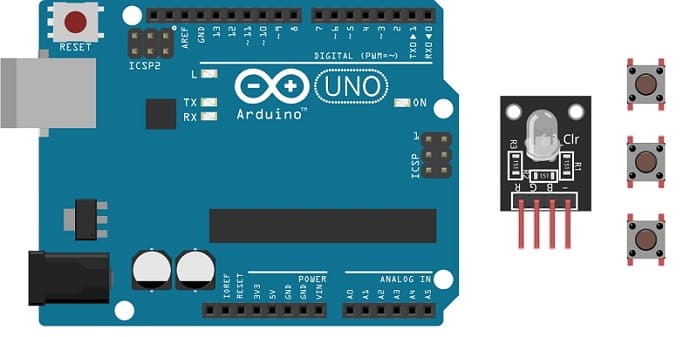
Tutorial plan
1- Role of the push button in robotics
2-The components necessary to control the RGB LED module by push buttons through the Arduino UNO board
3-Mounting the Arduino UNO board with the RGB LED module and push buttons
4-Programming the Arduino UNO board to turn on the RGB LED module using the push buttons
Role of the push button in robotics
Push buttons can play a significant role in robotics by serving as a means of human interaction and control in various ways:
Start/Stop Control: Push buttons are often used to start and stop robotic systems. For example, a start button can initiate the robot's operation, and a stop button can halt it in case of an emergency or to end a task.
Emergency Stop (E-Stop): Emergency stop buttons are critical safety features in robotics. They provide an immediate and easily accessible way to shut down the robot in case of a malfunction or a hazardous situation. This is crucial for ensuring the safety of both the robot and the people working around it.
Mode Selection: In more complex robotic systems, push buttons can be used to select different operational modes, such as autonomous mode, manual control mode, or specific task modes. Users can switch between these modes using buttons.
User Interface: Push buttons can be used to provide a simple user interface for users to interact with the robot. They can trigger specific actions or functions, like moving an arm, activating a gripper, or changing the robot's behavior.
Teaching and Programming: Push buttons can be used in a teaching or programming mode, where operators can manually move robot arms or other components to demonstrate desired motions or trajectories. This information can be recorded and later reproduced by the robot.
Limit or Home Switches: Push buttons can be used as limit switches or home switches in robotics. They help the robot establish reference points or boundaries for its movement, ensuring accuracy and safety.
Calibration and Configuration: Push buttons can be used for calibrating sensors, configuring parameters, or setting up the robot's initial conditions. They can be part of a setup process to ensure that the robot operates as intended.
Reset or Clear Function: Push buttons can be used to reset the robot's state, clear error conditions, or restart specific tasks. They can help recover from unexpected situations.
User Feedback: Some push buttons may include indicator lights or displays to provide feedback to the user, such as the current mode, status, or system health.
Push buttons, when combined with microcontrollers and control systems, offer a convenient way for humans to interact with and control robots, whether in industrial automation, research, or various other applications. Their design and functionality can vary based on the specific needs of the robotic system and the safety requirements associated with it.
The components necessary to control the RGB LED module by push buttons through the Arduino UNO board
To control the module LED RGB using an Arduino UNO and push buttons, you will need the following components:
Arduino UNO:
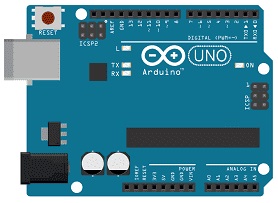
The Arduino UNO is a microcontroller board that serves as the brain of your project. It provides the necessary I/O pins and processing power to control the RGB LED module.
RGB LED Module:
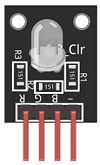
This module contains a red, green, and blue LED, allowing you to produce various colors by controlling the intensity of each color component.
Push button:
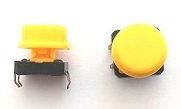
A push button, also known as a momentary switch or tactile switch, is a simple yet commonly used electromechanical component in electronics. It is designed to make or break an electrical connection temporarily when pressed or released.
Resistance
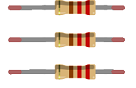
In the context of electronics and electrical circuits, a resistance refers to a passive two-terminal electrical component that restricts the flow of electric current. It is typically measured in ohms (Ω).
Breadboard:
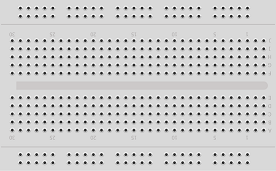
A breadboard is a prototyping board that allows you to build circuits without soldering. It provides a convenient way to connect the components together.
Jumper Wires:
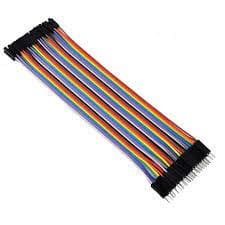
You'll need jumper wires to make connections between the Arduino UNO, RGB LED module and breadboard.
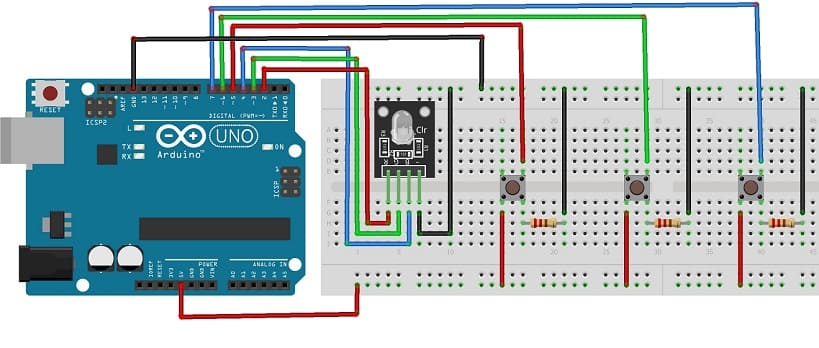
Mounting the Arduino UNO board with the RGB LED module and push buttons
Once you have the necessary components, you can proceed with the following steps to control the RGB LED module:
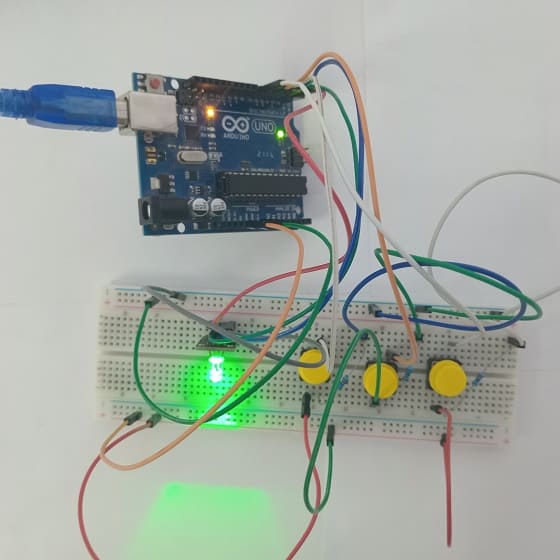
1- Connect pin R (red) of RGB LED module to pin N°2 of the Arduino UNO
2- Connect pin G (green) of RGB LED module to pin N°3 of the Arduino UNO
3- Connect pin B (blue) of RGB LED module to pin N°4 of the Arduino UNO
4- Connect pin GND of RGB LED module to pin GND of the Arduino UNO
For push buttons
1- Push button 1:
- Connect one leg of the push button to pin 5 of the Arduino.
- Connect another leg of the push button to the 5V pin of the Arduino.
- Place a 10k Ohm resistor between the third leg of the push button and the GND pin of the Arduino.
2- Push button 2:
- Connect one leg of the push button to pin 6 of the Arduino.
- Connect another leg of the push button to the 5V pin of the Arduino.
- Place a 10k Ohm resistor between the third leg of the push button and the GND pin of the Arduino.
3- Push button 3:
- Connect one leg of the push button to pin 7 of the Arduino.
- Connect another leg of the push button to the 5V pin of the Arduino.
- Place a 10k Ohm resistor between the third leg of the push button and the GND pin of the Arduino.
Programming the Arduino UNO board to turn on the RGB LED module using the push buttons
To program an Arduino UNO board to control an RGB LED module using push buttons, you'll need to write a sketch (Arduino program) that reads the state of the push buttons and adjusts the color displayed by the RGB LED based on button presses :
- A push button to turn the red color of the RGB LED on or off.
- The second button to turn the green color of the RGB LED on or off.
- The third button to turn on or off the blue color.
Here's an example Arduino sketch to control the RGB LED module with push buttons.
|
1 2 3 4 5 6 7 8 9 10 11 12 13 14 15 16 17 18 19 20 21 22 23 24 25 26 27 28 29 30 31 32 33 34 35 36 37 38 39 40 41 42 43 44 45 46 47 48 49 50 51 52 53 54 55 56 57 58 59 60 61 62 63 64 65 66 67 68 69 70 71 72 73 74 75 76 77 78 |
#define Red_PIN 2 // the number of pin R(red) of RGB LED #define Red_BUTTON_PIN 5 // the number of the pushbutton pin to light red color of LED RGB #define Green_PIN 3 // the number of pin G(green) of RGB LED #define Green_BUTTON_PIN 6 // the number of the pushbutton pin to light green color of LED RGB #define Blue_PIN 4 // the number of pin B(blue) of RGB LED #define Blue_BUTTON_PIN 7 // the number of the pushbutton pin to light blue color of LED RGB byte RedlastButtonState = LOW; // to keep the state of the first button and the red color of LED RGB byte RedledState = LOW; // to keep the state of the first button and the red color of LED RGB byte GreenlastButtonState = LOW; // to keep the state of the second button and the green color of LED RGB byte GreenledState = LOW; // to keep the state of the second button and the green color of LED RGB byte BluelastButtonState = LOW; // to keep the state of the third button and the blue color of LED RGB byte BlueledState = LOW; // to keep the state of the third button and the blue color of LED RGB unsigned long debounceDuration = 50; // millis unsigned long lastTimeRedButtonStateChanged = 0; unsigned long lastTimeGreenButtonStateChanged = 0; unsigned long lastTimeBlueButtonStateChanged = 0; void setup() { // initialize the red pin as an output: pinMode(Red_PIN, OUTPUT); // initialize the pushbutton pin as an input: pinMode(Red_BUTTON_PIN, INPUT); // initialize the green pin as an output: pinMode(Green_PIN, OUTPUT); // initialize the pushbutton pin as an input: pinMode(Green_BUTTON_PIN, INPUT); // initialize the blue pin as an output: pinMode(Blue_PIN, OUTPUT); // initialize the pushbutton pin as an input: pinMode(Blue_BUTTON_PIN, INPUT); } void loop() { // to turn the red color of the RGB LED module on or off using the first button if (millis() - lastTimeRedButtonStateChanged > debounceDuration) //start the button/LED functionality if enough time has passed since the last time the button’s state was changed { byte RedbuttonState = digitalRead(Red_BUTTON_PIN); // the pushbutton is pressed if (RedbuttonState != RedlastButtonState) { lastTimeRedButtonStateChanged = millis(); RedlastButtonState = RedbuttonState; if (RedbuttonState == LOW) { RedledState = (RedledState == HIGH) ? LOW: HIGH; // Toggle the state of the RGB LED when the button has been released digitalWrite(Red_PIN, RedledState); // turn the red color on or off depending on the state of the LED } } } // to turn the green color of the RGB LED module on or off using the second button if (millis() - lastTimeGreenButtonStateChanged > debounceDuration) { byte GreenbuttonState = digitalRead(Green_BUTTON_PIN); if (GreenbuttonState != GreenlastButtonState) { lastTimeGreenButtonStateChanged = millis(); GreenlastButtonState = GreenbuttonState; if (GreenbuttonState == LOW) { GreenledState = (GreenledState == HIGH) ? LOW: HIGH; digitalWrite(Green_PIN, GreenledState); } } } // to turn the blue color of the RGB LED module on or off using the third button if (millis() - lastTimeBlueButtonStateChanged > debounceDuration) { byte BluebuttonState = digitalRead(Blue_BUTTON_PIN); if (BluebuttonState != BluelastButtonState) { lastTimeBlueButtonStateChanged = millis(); BluelastButtonState = BluebuttonState; if (BluebuttonState == LOW) { BlueledState = (BlueledState == HIGH) ? LOW: HIGH; digitalWrite(Blue_PIN, BlueledState); } } } } |
209 comments

vn22vip.com 01-10-2626
This is a very informative post about online casinos and betting platforms. I especially liked how it explains the importance of choosing a trusted site before signing up. Many players often ask where they can find reliable gaming platforms with fair odds and smooth payouts. From what I’ve seen, checking platforms like vn22vip helps users compare features, bonuses, and overall experience. Thanks for sharing these insights — they’re helpful for both beginners and experienced bettors.
vn22vip.com 30-09-2626
This is a very informative post about online casinos and betting platforms. I especially liked how it explains the importance of choosing a trusted site before signing up. Many players often ask where they can find reliable gaming platforms with fair odds and smooth payouts. From what I’ve seen, checking platforms like vn22vip helps users compare features, bonuses, and overall experience. Thanks for sharing these insights — they’re helpful for both beginners and experienced bettors.
vn22vip.com 28-09-2626
This is a very informative post about online casinos and betting platforms. I especially liked how it explains the importance of choosing a trusted site before signing up. Many players often ask where they can find reliable gaming platforms with fair odds and smooth payouts. From what I’ve seen, checking platforms like vn22vip helps users compare features, bonuses, and overall experience. Thanks for sharing these insights — they’re helpful for both beginners and experienced bettors.
play888new.com 27-09-2626
This is a very informative post about online casinos and betting platforms. I especially liked how it explains the importance of choosing a secure site before signing up. Many players often ask where they can find reliable gaming platforms with fair odds and smooth payouts. From what I’ve seen, checking platforms like vn22vip helps users compare features, bonuses, and overall experience. Thanks for sharing these insights — they’re helpful for both beginners and experienced bettors.
vn22vip.com 26-09-2626
This is a very informative post about online casinos and betting platforms. I especially liked how it explains the importance of choosing a licensed site before signing up. Many players often ask where they can find reliable gaming platforms with fair odds and smooth payouts. From what I’ve seen, checking platforms like vn22vip helps users compare features, bonuses, and overall experience. Thanks for sharing these insights — they’re helpful for both beginners and experienced bettors.
vn22vip.com 26-09-2626
This is a very informative post about online casinos and betting platforms. I especially liked how it explains the importance of choosing a licensed site before signing up. Many players often ask where they can find reliable gaming platforms with fair odds and smooth payouts. From what I’ve seen, checking platforms like vn22vip helps users compare features, bonuses, and overall experience. Thanks for sharing these insights — they’re helpful for both beginners and experienced bettors.
vn22vip.com 25-09-2626
This is a very informative post about online casinos and betting platforms. I especially liked how it explains the importance of choosing a secure site before signing up. Many players often ask where they can find reliable gaming platforms with fair odds and smooth payouts. From what I’ve seen, checking platforms like vn22vip helps users compare features, bonuses, and overall experience. Thanks for sharing these insights — they’re helpful for both beginners and experienced bettors.
live cams 22-09-2626
Thhis websitge really hass aall thhe information aand facts I ndeded concernibg tjis subbject and didn't kknow whoo tto ask. xnxx
play888new.com 22-09-2626
This is a very informative post about online casinos and betting platforms. I especially liked how it explains the importance of choosing a licensed site before signing up. Many players often ask where they can find reliable gaming platforms with fair odds and smooth payouts. From what I’ve seen, checking platforms like vn22vip helps users compare features, bonuses, and overall experience. Thanks for sharing these insights — they’re helpful for both beginners and experienced bettors.
vn22vip.com 19-09-2626
This is a very informative post about online casinos and betting platforms. I especially liked how it explains the importance of choosing a trusted site before signing up. Many players often ask where they can find reliable gaming platforms with fair odds and smooth payouts. From what I’ve seen, checking platforms like vn22vip helps users compare features, bonuses, and overall experience. Thanks for sharing these insights — they’re helpful for both beginners and experienced bettors.
play-digitalmedia.com 09-09-2626
Good replies in return of this issue with firm arguments and explaining everything about that.
vn22vip.com 30-08-2626
This is a very informative post about online casinos and betting platforms. I especially liked how it explains the importance of choosing a licensed site before signing up. Many players often ask where they can find reliable gaming platforms with fair odds and smooth payouts. From what I’ve seen, checking platforms like vn22vip helps users compare features, bonuses, and overall experience. Thanks for sharing these insights — they’re helpful for both beginners and experienced bettors.
vn22vip.com 28-08-2626
This is a very informative post about online casinos and betting platforms. I especially liked how it explains the importance of choosing a secure site before signing up. Many players often ask where they can find reliable gaming platforms with fair odds and smooth payouts. From what I’ve seen, checking platforms like vn22vip helps users compare features, bonuses, and overall experience. Thanks for sharing these insights — they’re helpful for both beginners and experienced bettors.
play888new.com 27-08-2626
This is a very informative post about online casinos and betting platforms. I especially liked how it explains the importance of choosing a secure site before signing up. Many players often ask where they can find reliable gaming platforms with fair odds and smooth payouts. From what I’ve seen, checking platforms like vn22vip helps users compare features, bonuses, and overall experience. Thanks for sharing these insights — they’re helpful for both beginners and experienced bettors.
vn22vip.com 26-08-2626
This is a very informative post about online casinos and betting platforms. I especially liked how it explains the importance of choosing a licensed site before signing up. Many players often ask where they can find reliable gaming platforms with fair odds and smooth payouts. From what I’ve seen, checking platforms like vn22vip helps users compare features, bonuses, and overall experience. Thanks for sharing these insights — they’re helpful for both beginners and experienced bettors.
vn22vip.com 26-08-2626
This is a very informative post about online casinos and betting platforms. I especially liked how it explains the importance of choosing a licensed site before signing up. Many players often ask where they can find reliable gaming platforms with fair odds and smooth payouts. From what I’ve seen, checking platforms like vn22vip helps users compare features, bonuses, and overall experience. Thanks for sharing these insights — they’re helpful for both beginners and experienced bettors.
vn22vip.com 23-08-2626
This is a very informative post about online casinos and betting platforms. I especially liked how it explains the importance of choosing a trusted site before signing up. Many players often ask where they can find reliable gaming platforms with fair odds and smooth payouts. From what I’ve seen, checking platforms like vn22vip helps users compare features, bonuses, and overall experience. Thanks for sharing these insights — they’re helpful for both beginners and experienced bettors.
vn22vip.com 14-08-2626
This is a very informative post about online casinos and betting platforms. I especially liked how it explains the importance of choosing a secure site before signing up. Many players often ask where they can find reliable gaming platforms with fair odds and smooth payouts. From what I’ve seen, checking platforms like vn22vip helps users compare features, bonuses, and overall experience. Thanks for sharing these insights — they’re helpful for both beginners and experienced bettors.
vn22vip.com 14-08-2626
This is a very informative post about online casinos and betting platforms. I especially liked how it explains the importance of choosing a licensed site before signing up. Many players often ask where they can find reliable gaming platforms with fair odds and smooth payouts. From what I’ve seen, checking platforms like vn22vip helps users compare features, bonuses, and overall experience. Thanks for sharing these insights — they’re helpful for both beginners and experienced bettors.
Trading platform 10-08-2626
Saved as a favorite, I love your web site!
vn22vip.com 08-08-2626
This is a very informative post about online casinos and betting platforms. I especially liked how it explains the importance of choosing a secure site before signing up. Many players often ask where they can find reliable gaming platforms with fair odds and smooth payouts. From what I’ve seen, checking platforms like vn22vip helps users compare features, bonuses, and overall experience. Thanks for sharing these insights — they’re helpful for both beginners and experienced bettors.
Mr Beast Casino 04-08-2626
Do you mind if I quote a couple of your posts as long as I provide credit and sources back to your webpage? My blog is in the exact same area of interest as yours and my visitors would genuinely benefit from a lot of the information you provide here. Please let me know if this alright with you. Thanks!
phim sex 31-07-2626
It's a pity you don't have a donate button! I'd without a doubt donate to this excellent blog! I suppose for now i'll settle for bookmarking and adding your RSS feed to my Google account. I look forward to brand new updates and will share this blog with my Facebook group. Chat soon!
how to start freelance work 31-07-2626
Howdy! This article could not be written any better! Going through this post reminds me of my previous roommate! He always kept preaching about this. I am going to send this article to him. Fairly certain he will have a very good read. Many thanks for sharing!
vn22vip.com 28-07-2626
This is a very informative post about online casinos and betting platforms. I especially liked how it explains the importance of choosing a trusted site before signing up. Many players often ask where they can find reliable gaming platforms with fair odds and smooth payouts. From what I’ve seen, checking platforms like vn22vip helps users compare features, bonuses, and overall experience. Thanks for sharing these insights — they’re helpful for both beginners and experienced bettors.
useful reference 28-07-2626
My spouse and I stumbled over here from a different website and thought I might as well check things out. I like what I see so now i am following you. Look forward to checking out your web page yet again.
Summer Music 27-07-2626
Thanks for every other informative web site. Where else may just I am getting that kind of information written in such an ideal approach? I have a project that I am simply now working on, and I've been at the look out for such info.
webpage 25-07-2626
Oh my goodness! Incredible article dude! Thank you so much, However I am experiencing difficulties with your RSS. I don't know the reason why I am unable to subscribe to it. Is there anybody getting similar RSS problems? Anyone that knows the answer will you kindly respond? Thanks!!
Lizaro France 24-07-2626
Nice response in return of this difficulty with solid arguments and describing the whole thing concerning that.
Sklep SEO 23-07-2626
Hey! I just noticed one other message in one other weblog that looked like this. How are you aware all this stuff? That's one cool post.
kd777 21-07-2626
I will immediately seize your rss feed as I can not find your email subscription hyperlink or e-newsletter service. Do you have any? Please let me realize in order that I may just subscribe. Thanks.
Sylvia 20-07-2626
Nice post, thanks for sharing! Great article, very useful. I learned something new today. Good information, appreciate it. Very helpful content, thanks!
binal 18-07-2626
Wow, this piece of writing is pleasant, my sister is analyzing such things, thus I am going to let know her.
sex 18-07-2626
Hi to all, how is all, I think every one is getting more from this website, and your views are pleasant for new people.
f8bet com 16-07-2626
You really make it appear so easy along with your presentation but I in finding this topic to be really something that I think I might never understand. It seems too complex and extremely huge for me. I am having a look ahead to your subsequent put up, I will attempt to get the hold of it!
situs porn 16-07-2626
Magnificent beat ! I would like to apprentice whilst you amend your web site, how can i subscribe for a blog website? The account helped me a applicable deal. I have been a little bit acquainted of this your broadcast offered brilliant transparent idea
188v 15-07-2626
This info is invaluable. When can I find out more?
сайт 14-07-2626
Hi! I simply wish to give you a big thumbs up for your great information you have got here on this post. I will be coming back to your site for more soon.
homepage 14-07-2626
I do not even know how I ended up here, but I thought this post was great. I do not know who you are but certainly you are going to a famous blogger if you are not already ;) Cheers!
ngentot 13-07-2626
Way cool! Some extremely valid points! I appreciate you writing this post and also the rest of the site is really good.
vn22vip.com 13-07-2626
This is a very informative post about online casinos and betting platforms. I especially liked how it explains the importance of choosing a secure site before signing up. Many players often ask where they can find reliable gaming platforms with fair odds and smooth payouts. From what I’ve seen, checking platforms like vn22vip helps users compare features, bonuses, and overall experience. Thanks for sharing these insights — they’re helpful for both beginners and experienced bettors.
ระบบ CRM ราคาถูก 13-07-2626
Sweet blog! I found it while searching on Yahoo News. Do you have any suggestions on how to get listed in Yahoo News? I've been trying for a while but I never seem to get there! Appreciate it
vn22vip.com 13-07-2626
This is a very informative post about online casinos and betting platforms. I especially liked how it explains the importance of choosing a secure site before signing up. Many players often ask where they can find reliable gaming platforms with fair odds and smooth payouts. From what I’ve seen, checking platforms like vn22vip helps users compare features, bonuses, and overall experience. Thanks for sharing these insights — they’re helpful for both beginners and experienced bettors.
sex 13-07-2626
Hi, this weekend is fastidious for me, for the reason that this occasion i am reading this enormous educational article here at my house.
go to my site 13-07-2626
Hello, i think that i saw you visited my website so i got here to return the choose?.I am trying to to find issues to improve my site!I guess its good enough to make use of some of your ideas!!
situs 18+ 13-07-2626
Hello there I am so grateful I found your website, I really found you by accident, while I was searching on Bing for something else, Anyhow I am here now and would just like to say cheers for a incredible post and a all round thrilling blog (I also love the theme/design), I don’t have time to read it all at the moment but I have bookmarked it and also included your RSS feeds, so when I have time I will be back to read a lot more, Please do keep up the excellent jo.
horse gelatin trick ingredientes 12-07-2626
Amazing! Its really remarkable post, I have got much clear idea about from this piece of writing.
porn 12-07-2626
Post writing is also a excitement, if you know afterward you can write otherwise it is complex to write.
our website 12-07-2626
I have to thank you for the efforts you've put in penning this website. I really hope to view the same high-grade blog posts by you later on as well. In truth, your creative writing abilities has motivated me to get my own, personal blog now ;)
Instant Withdrawal Casinos 12-07-2626
Hey There. I found your blog using msn. This is a very well written article. I'll make sure to bookmark it and come back to read more of your useful info. Thanks for the post. I will definitely comeback.
horse gelatin trick recipe 12-07-2626
I believe this is among the most important info for me. And i am glad reading your article. However want to statement on few basic things, The website taste is perfect, the articles is in reality great : D. Excellent process, cheers
play888new.com 12-07-2626
This is a very informative post about online casinos and betting platforms. I especially liked how it explains the importance of choosing a secure site before signing up. Many players often ask where they can find reliable gaming platforms with fair odds and smooth payouts. From what I’ve seen, checking platforms like vn22vip helps users compare features, bonuses, and overall experience. Thanks for sharing these insights — they’re helpful for both beginners and experienced bettors.
ten toto 12-07-2626
Wonderful post however I was wanting to know if you could write a litte more on this topic? I'd be very thankful if you could elaborate a little bit more. Thanks!
vn22vip.com 12-07-2626
This is a very informative post about online casinos and betting platforms. I especially liked how it explains the importance of choosing a secure site before signing up. Many players often ask where they can find reliable gaming platforms with fair odds and smooth payouts. From what I’ve seen, checking platforms like vn22vip helps users compare features, bonuses, and overall experience. Thanks for sharing these insights — they’re helpful for both beginners and experienced bettors.
Best Lash Cluster Glues 2026 12-07-2626
Transform your beauty routine with expert lash guides from SJLASHES SHOP. Discover top-performing lash cluster glues, professional false eyelashes, beginner-friendly magnetic lashes, long-lasting lash clusters, and gentle options for sensitive eyes. Learn which products provide the strongest hold, the safest ingredients, and the most natural appearance while enjoying practical tips from experienced lash specialists. Whether you're a first-time user, makeup enthusiast, professional lash artist, salon owner, or wholesale buyer, you'll gain valuable knowledge to confidently choose premium eyelash products that deliver comfort, durability, and stunning results every day.
video telanjang 12-07-2626
Hurrah, that's what I was searching for, what a information! present here at this website, thanks admin of this website.
Best online casino 12-07-2626
I'm gone to convey my little brother, that he should also visit this weblog on regular basis to obtain updated from most up-to-date information.
play888new.com 11-07-2626
This is a very informative post about online casinos and betting platforms. I especially liked how it explains the importance of choosing a licensed site before signing up. Many players often ask where they can find reliable gaming platforms with fair odds and smooth payouts. From what I’ve seen, checking platforms like vn22vip helps users compare features, bonuses, and overall experience. Thanks for sharing these insights — they’re helpful for both beginners and experienced bettors.
video telanjang 11-07-2626
Heya i am for the first time here. I came across this board and I find It truly useful & it helped me out much. I'm hoping to present something again and aid others like you aided me.
best non gamstop casinos 11-07-2626
I've been surfing on-line more than three hours today, yet I never discovered any fascinating article like yours. It is pretty value sufficient for me. In my opinion, if all webmasters and bloggers made good content as you did, the web will be a lot more helpful than ever before.
situs porno 10-07-2626
Appreciating the time and energy you put into your blog and detailed information you offer. It's nice to come across a blog every once in a while that isn't the same out of date rehashed material. Great read! I've bookmarked your site and I'm including your RSS feeds to my Google account.
대전출장안마 10-07-2626
대전출장안마 바쁜 일상, 잦은 이동, 장시간 업무로 몸이 무겁게 느껴진다면 이동 없이 원하는 장소에서 편안하게 받는 방문형 케어가 도움이 될 수 있습니다. 대전출장안마는 집, 호텔
situs porn 10-07-2626
Having read this I thought it was rather informative. I appreciate you taking the time and energy to put this informative article together. I once again find myself personally spending way too much time both reading and posting comments. But so what, it was still worthwhile!
Trading platform 10-07-2626
Hello, just wanted to mention, I liked this post. It was helpful. Keep on posting!
bkslot 10-07-2626
Today, I went to the beach with my kids. I found a sea shell and gave it to my 4 year old daughter and said "You can hear the ocean if you put this to your ear." She put the shell to her ear and screamed. There was a hermit crab inside and it pinched her ear. She never wants to go back! LoL I know this is totally off topic but I had to tell someone!
cybersecurity 10-07-2626
Have you ever thought about adding a little bit more than just your articles? I mean, what you say is fundamental and all. However imagine if you added some great photos or video clips to give your posts more, "pop"! Your content is excellent but with images and clips, this blog could definitely be one of the most beneficial in its niche. Amazing blog!
video telanjang 10-07-2626
Thanks on your marvelous posting! I quite enjoyed reading it, you are a great author. I will make certain to bookmark your blog and will often come back down the road. I want to encourage yourself to continue your great work, have a nice afternoon!
bkslot 10-07-2626
This design is spectacular! You certainly know how to keep a reader amused. Between your wit and your videos, I was almost moved to start my own blog (well, almost...HaHa!) Fantastic job. I really loved what you had to say, and more than that, how you presented it. Too cool!
best solar water heater 10-07-2626
I am curious to find out what blog platform you are utilizing? I'm having some small security problems with my latest blog and I would like to find something more safeguarded. Do you have any solutions?
사이트모음 10-07-2626
I like the helpful information you provide in your articles. I will bookmark your blog and check again here frequently. I'm quite sure I will learn many new stuff right here! Best of luck for the next!
nordpeakfx.com 10-07-2626
Do you have any video of that? I'd like to find out some additional information.
fxpro spreads 10-07-2626
Write more, thats all I have to say. Literally, it seems as though you relied on the video to make your point. You clearly know what youre talking about, why throw away your intelligence on just posting videos to your weblog when you could be giving us something informative to read?
kontol 10-07-2626
I was suggested this blog through my cousin. I'm now not sure whether or not this post is written by him as no one else realize such exact about my problem. You're wonderful! Thanks!
pgz888 10-07-2626
After I initially left a comment I appear to have clicked the -Notify me when new comments are added- checkbox and from now on each time a comment is added I receive 4 emails with the exact same comment. Perhaps there is a means you are able to remove me from that service? Cheers!
Read More Here 10-07-2626
What's up to all, how is everything, I think every one is getting more from this website, and your views are pleasant for new visitors.
vantage-france.com/ 10-07-2626
It's really a great and helpful piece of information. I am happy that you shared this helpful information with us. Please stay us up to date like this. Thank you for sharing.
드라마 다시보기 09-07-2626
Someone essentially help to make severely articles I would state. This is the very first time I frequented your website page and up to now? I amazed with the research you made to create this particular post amazing. Fantastic activity!
https://bettingsiteswithouttaxke.online 09-07-2626
It's an amazing post designed for all the web viewers; they will take advantage from it I am sure.
בלאק קיוב 09-07-2626
Hello! Would you mind if I share your blog with my twitter group? There's a lot of folks that I think would really appreciate your content. Please let me know. Thank you
易歪歪 09-07-2626
It is appropriate time to make some plans for the future and it's time to be happy. I have read this post and if I could I want to suggest you few interesting things or advice. Maybe you can write next articles referring to this article. I wish to read more things about it!
runescape privet server 09-07-2626
Hey, I think your site might be having browser compatibility issues. When I look at your blog in Ie, it looks fine but when opening in Internet Explorer, it has some overlapping. I just wanted to give you a quick heads up! Other then that, terrific blog!
helpful resources 09-07-2626
Great post. I was checking continuously this blog and I'm impressed! Very useful info specifically the last part :) I care for such info a lot. I was looking for this particular info for a very long time. Thank you and best of luck.
PU Prime canada 09-07-2626
This info is worth everyone's attention. Where can I find out more?
situs porn 08-07-2626
Wow, marvelous weblog format! How long have you ever been running a blog for? you make blogging look easy. The entire glance of your site is magnificent, let alone the content!
vn22vip.com 08-07-2626
This is a very informative post about online casinos and betting platforms. I especially liked how it explains the importance of choosing a trusted site before signing up. Many players often ask where they can find reliable gaming platforms with fair odds and smooth payouts. From what I’ve seen, checking platforms like vn22vip helps users compare features, bonuses, and overall experience. Thanks for sharing these insights — they’re helpful for both beginners and experienced bettors.
Trading platform 08-07-2626
Nice weblog here! Additionally your website loads up very fast! What web host are you the usage of? Can I am getting your associate hyperlink in your host? I desire my website loaded up as fast as yours lol
slot gacor 08-07-2626
Hello! Quick question that's completely off topic. Do you know how to make your site mobile friendly? My web site looks weird when viewing from my apple iphone. I'm trying to find a template or plugin that might be able to fix this problem. If you have any suggestions, please share. Thank you!
More Bonuses 08-07-2626
Hi to all, as I am in fact keen of reading this web site's post to be updated daily. It carries fastidious data.
web page 08-07-2626
Very nice post. I certainly appreciate this site. Continue the good work!
Casino Boomerang Bet 07-07-2626
What's up friends, pleasant paragraph and good arguments commented at this place, I am really enjoying by these.
بازی انفجار 07-07-2626
Hi there to every body, it's my first visit off this blog; this website carгies amazing аnd actually excellent stսff for readers. Look at my web blog - بازی انفجار
f8bet ch쭨 th?c 07-07-2626
Great site you have here.. It's hard to find excellent writing like yours these days. I seriously appreciate individuals like you! Take care!!
Learn More 07-07-2626
What's up, just wanted to tell you, I enjoyed this post. It was practical. Keep on posting!
situs 18+ 07-07-2626
Hello! Would you mind if I share your blog with my myspace group? There's a lot of folks that I think would really enjoy your content. Please let me know. Cheers
https://vantage-france.com/ 06-07-2626
Awesome post.
binal 06-07-2626
It's amazing to go to see this site and reading the views of all mates concerning this article, while I am also eager of getting knowledge.
video porno 06-07-2626
Keep on working, great job!
useful reference 06-07-2626
Just desire to say your article is as surprising. The clearness in your post is simply excellent and i could assume you are an expert on this subject. Well with your permission allow me to grab your feed to keep updated with forthcoming post. Thanks a million and please keep up the enjoyable work.
click reference 06-07-2626
Ridiculous quest there. What happened after? Thanks!
Portugal vs DR Congo 06-07-2626
I loved as much as you'll receive carried out right here. The sketch is attractive, your authored material stylish. nonetheless, you command get bought an edginess over that you wish be delivering the following. unwell unquestionably come further formerly again as exactly the same nearly a lot often inside case you shield this increase.
best non gamstop casinos 06-07-2626
I’m not that much of a internet reader to be honest but your sites really nice, keep it up! I'll go ahead and bookmark your website to come back in the future. All the best
Going Here 06-07-2626
If some one wants to be updated with most up-to-date technologies then he must be pay a quick visit this site and be up to date daily.
buzdolbı tamiri 06-07-2626
Greetings! Very helpful advice in this particular post! It's the little changes that will make the most significant changes. Thanks for sharing!
Stephany 06-07-2626
This web site definitely has all the information and facts I wanted about this subject and didn't know who to ask.
Doctiplus online doctors 06-07-2626
Do you have a spam problem on this site; I also am a blogger, and I was curious about your situation; many of us have developed some nice methods and we are looking to exchange solutions with other folks, please shoot me an email if interested.
situs bokep 05-07-2626
Hello just wanted to give you a quick heads up. The words in your article seem to be running off the screen in Ie. I'm not sure if this is a formatting issue or something to do with browser compatibility but I thought I'd post to let you know. The design and style look great though! Hope you get the problem fixed soon. Thanks
binal 05-07-2626
Hi! I know this is kind of off topic but I was wondering if you knew where I could locate a captcha plugin for my comment form? I'm using the same blog platform as yours and I'm having trouble finding one? Thanks a lot!
play888new.com 05-07-2626
This is a very informative post about online casinos and betting platforms. I especially liked how it explains the importance of choosing a licensed site before signing up. Many players often ask where they can find reliable gaming platforms with fair odds and smooth payouts. From what I’ve seen, checking platforms like vn22vip helps users compare features, bonuses, and overall experience. Thanks for sharing these insights — they’re helpful for both beginners and experienced bettors.
Go88 05-07-2626
Hello, all the time i used to check website posts here early in the dawn, as i enjoy to gain knowledge of more and more.
situs porno 04-07-2626
This is my first time pay a quick visit at here and i am in fact impressed to read all at alone place.
Doctiplus online doctors 04-07-2626
I read this piece of writing fully concerning the difference of newest and previous technologies, it's awesome article.
Bitcoin casinos Australia 04-07-2626
Ahaa, its nice conversation regarding this paragraph at this place at this weblog, I have read all that, so now me also commenting at this place.
Проверить техосмотр по номеру автомобиля 04-07-2626
Hey there I am so grateful I found your blog page, I really found you by mistake, while I was researching on Askjeeve for something else, Anyhow I am here now and would just like to say many thanks for a marvelous post and a all round interesting blog (I also love the theme/design), I don't have time to read through it all at the moment but I have saved it and also included your RSS feeds, so when I have time I will be back to read a great deal more, Please do keep up the superb job.
binal 04-07-2626
Excellent, what a web site it is! This weblog provides helpful facts to us, keep it up.
click this 04-07-2626
It's actually a cool and helpful piece of info. I am happy that you simply shared this helpful info with us. Please keep us informed like this. Thanks for sharing.
https://sgmsg.uriweb.kr/ 04-07-2626
It's an remarkable article for all the internet users; they will take benefit from it I am sure.
Bitcoin Casinos Australia 04-07-2626
When I originally commented I clicked the "Notify me when new comments are added" checkbox and now each time a comment is added I get three emails with the same comment. Is there any way you can remove me from that service? Thanks a lot!
대전출장마사지 04-07-2626
I always used to read post in news papers but now as I am a user of web thus from now I am using net for posts, thanks to web.
buzdolabı tamiri 04-07-2626
Pretty part of content. I simply stumbled upon your web site and in accession capital to claim that I acquire actually loved account your weblog posts. Anyway I will be subscribing in your feeds or even I fulfillment you get right of entry to persistently quickly.
Instant Withdrawal Casinos 04-07-2626
Thanks for the auspicious writeup. It in fact was a amusement account it. Glance advanced to more added agreeable from you! By the way, how can we keep up a correspondence?
situs dewasa 04-07-2626
What's up, after reading this remarkable piece of writing i am too happy to share my know-how here with friends.
Fast payout online casinos in Australia 04-07-2626
Hello, Neat post. There's an issue along with your website in web explorer, would test this? IE still is the marketplace leader and a good element of other folks will miss your excellent writing due to this problem.
porn 03-07-2626
I like what you guys tend to be up too. This type of clever work and reporting! Keep up the amazing works guys I've added you guys to my own blogroll.
Best Crypto Casino 03-07-2626
I loved as much as you'll receive carried out right here. The sketch is tasteful, your authored material stylish. nonetheless, you command get bought an nervousness over that you wish be delivering the following. unwell unquestionably come further formerly again as exactly the same nearly very often inside case you shield this hike.
SITUS SCAM 03-07-2626
Hey! This is my 1st comment here so I just wanted to give a quick shout out and tell you I truly enjoy reading through your articles. Can you recommend any other blogs/websites/forums that go over the same topics? Thanks a lot!
usdt wallet 03-07-2626
You actually make it seem so easy with your presentation but I find this topic to be actually something which I think I would never understand. It seems too complicated and very broad for me. I'm looking forward for your next post, I'll try to get the hang of it!
Fast payout online casino in Australia 03-07-2626
I really like reading a post that will make men and women think. Also, many thanks for permitting me to comment!
article source 03-07-2626
I have read so many articles or reviews concerning the blogger lovers but this paragraph is genuinely a fastidious post, keep it up.
Boomerang Bet Casino France 03-07-2626
I'm not sure where you are getting your information, but great topic. I needs to spend some time learning much more or understanding more. Thanks for fantastic info I was looking for this information for my mission.
kontol besar 02-07-2626
You are so interesting! I don't believe I've truly read anything like that before. So nice to find somebody with some original thoughts on this subject. Seriously.. thank you for starting this up. This web site is something that is needed on the internet, someone with some originality!
tante girang 02-07-2626
This is a topic that's near to my heart... Cheers! Where are your contact details though?
memek online 02-07-2626
Pretty part of content. I just stumbled upon your site and in accession capital to assert that I get in fact loved account your blog posts. Anyway I will be subscribing to your feeds or even I success you access consistently rapidly.
Blog 02-07-2626
Wow! Finally I got a webpage from where I know how to actually obtain useful data regarding my study and knowledge.
admiral x зеркало рабочее на сегодня 02-07-2626
It's very trouble-free to find out any matter on web as compared to books, as I found this post at this web site.
WD TIDAK DI BAYAR 02-07-2626
You could certainly see your enthusiasm within the article you write. The world hopes for even more passionate writers such as you who are not afraid to mention how they believe. Always go after your heart.
Best Crypto casino 02-07-2626
Wow, fantastic blog layout! How lengthy have you been blogging for? you made running a blog look easy. The whole glance of your website is wonderful, let alone the content!
read here 02-07-2626
Thankfulness to my father who told me about this blog, this website is actually remarkable.
video porno 02-07-2626
I always emailed this weblog post page to all my friends, because if like to read it next my links will too.
bokep 02-07-2626
Valuable information. Lucky me I discovered your site by accident, and I'm surprised why this accident didn't happened in advance! I bookmarked it.
jav 01-07-2626
You really make it seem so easy along with your presentation however I to find this matter to be really one thing which I think I'd by no means understand. It seems too complex and very vast for me. I am taking a look forward on your next submit, I'll try to get the hang of it!
SITUS BODONG 01-07-2626
Hello, all the time i used to check weblog posts here early in the break of day, since i love to gain knowledge of more and more.
SITUS GK MAMPU BAYAR WD 01-07-2626
Hi every one, here every one is sharing these know-how, therefore it's fastidious to read this website, and I used to pay a visit this weblog daily.
memek 01-07-2626
Hi there, after reading this remarkable post i am also glad to share my experience here with mates.
SITUS GK MAMPU BAYAR WD 30-06-2626
If some one desires to be updated with latest technologies after that he must be pay a visit this web page and be up to date every day.
video porno 30-06-2626
Hi! Do you know if they make any plugins to safeguard against hackers? I'm kinda paranoid about losing everything I've worked hard on. Any tips?
lgbt 30-06-2626
I really like your blog.. very nice colors & theme. Did you make this website yourself or did you hire someone to do it for you? Plz respond as I'm looking to create my own blog and would like to find out where u got this from. appreciate it
buy bitcoin with credit card 30-06-2626
Greetings! Very useful advice in this particular article! It is the little changes that will make the biggest changes. Many thanks for sharing!
situs slot 30-06-2626
It's difficult to find knowledgeable people about this topic, but you seem like you know what you're talking about! Thanks
important link 29-06-2626
Your style is really unique in comparison to other people I have read stuff from. Thank you for posting when you've got the opportunity, Guess I'll just bookmark this blog.
Portugal vs DR Congo 29-06-2626
We stumbled over here different page and thought I might check things out. I like what I see so now i am following you. Look forward to looking at your web page for a second time.
webpage 29-06-2626
Pretty nice post. I just stumbled upon your weblog and wished to say that I've truly enjoyed surfing around your blog posts. After all I will be subscribing to your rss feed and I'm hoping you write once more very soon!
SITUS SCAM 29-06-2626
Do you have a spam issue on this website; I also am a blogger, and I was wondering your situation; we have developed some nice methods and we are looking to trade methods with others, be sure to shoot me an email if interested.
bokep 18+ 29-06-2626
Hi there! Do you know if they make any plugins to help with SEO? I'm trying to get my blog to rank for some targeted keywords but I'm not seeing very good success. If you know of any please share. Cheers!
cczauvr 28-06-2626
hello!,I like your writing so much! share we be in contact extra approximately your article on AOL? I need a specialist on this space to unravel my problem. Maybe that's you! Looking forward to peer you.
cczauvr bh 28-06-2626
Excellent website. Plenty of helpful info here. I am sending it to several friends ans additionally sharing in delicious. And certainly, thanks to your effort!
U888 28-06-2626
Hi there, the whole thing is going well here and ofcourse every one is sharing facts, that's truly fine, keep up writing.
SITUS GK MAMPU BAYAR WD 28-06-2626
It's very straightforward to find out any matter on web as compared to textbooks, as I found this piece of writing at this web page.
ngentot 27-06-2626
Write more, thats all I have to say. Literally, it seems as though you relied on the video to make your point. You clearly know what youre talking about, why waste your intelligence on just posting videos to your weblog when you could be giving us something informative to read?
new Independent slot sites 2026 27-06-2626
I know this site gives quality based posts and other data, is there any other web page which presents such information in quality?
Instant Withdrawal Casinos 27-06-2626
Thanks for every other informative website. The place else may I am getting that type of information written in such an ideal method? I have a project that I'm simply now working on, and I've been on the look out for such information.
Buy Xanax Online 26-06-2626
Fine way of telling, and nice post to get information concerning my presentation topic, which i am going to present in school.
web page 26-06-2626
Hello to every one, the contents existing at this website are truly awesome for people experience, well, keep up the nice work fellows.
Best Crypto Casino 26-06-2626
Oh my goodness! Awesome article dude! Thank you so much, However I am going through difficulties with your RSS. I don't know the reason why I am unable to join it. Is there anyone else having identical RSS issues? Anyone that knows the solution can you kindly respond? Thanx!!
best non gamstop casinos 25-06-2626
Thanks to my father who stated to me about this webpage, this webpage is genuinely amazing.
buzdolabı tamiri 25-06-2626
Greetings I am so thrilled I found your site, I really found you by error, while I was looking on Askjeeve for something else, Anyhow I am here now and would just like to say kudos for a incredible post and a all round thrilling blog (I also love the theme/design), I don't have time to look over it all at the moment but I have book-marked it and also added your RSS feeds, so when I have time I will be back to read a great deal more, Please do keep up the fantastic job.
Bitcoin casinos Australia 25-06-2626
What's up, after reading this amazing post i am too happy to share my familiarity here with colleagues.
https://bettingsiteswithouttaxke.online 25-06-2626
Nice blog! Is your theme custom made or did you download it from somewhere? A theme like yours with a few simple adjustements would really make my blog jump out. Please let me know where you got your design. Bless you
tante girang 25-06-2626
For the reason that the admin of this website is working, no hesitation very soon it will be famous, due to its feature contents.
betting sites that use apple pay 25-06-2626
hey there and thank you for your information – I've definitely picked up something new from right here. I did however expertise several technical issues using this site, since I experienced to reload the website lots of times previous to I could get it to load properly. I had been wondering if your web host is OK? Not that I'm complaining, but slow loading instances times will often affect your placement in google and could damage your quality score if advertising and marketing with Adwords. Anyway I am adding this RSS to my email and could look out for much more of your respective exciting content. Make sure you update this again soon.
Bitcoin Casinos Australia 25-06-2626
Normally I do not read article on blogs, however I wish to say that this write-up very forced me to check out and do so! Your writing style has been amazed me. Thanks, very nice post.
Instant Withdrawal Casinos 25-06-2626
We are a group of volunteers and opening a brand new scheme in our community. Your website offered us with useful info to work on. You've performed an impressive job and our whole neighborhood might be thankful to you.
Fast payout online casinos in Australia 25-06-2626
Wow that was odd. I just wrote an extremely long comment but after I clicked submit my comment didn't appear. Grrrr... well I'm not writing all that over again. Anyhow, just wanted to say excellent blog!
worldcup 25-06-2626
I love reading an article that will make men and women think. Also, thank you for allowing me to comment!
https://qs.poker/ 24-06-2626
I was extremely pleased to discover this site. I wanted to thank you for ones time for this particularly wonderful read!! I definitely appreciated every bit of it and i also have you bookmarked to check out new information on your web site.
scam online 24-06-2626
Hey there! I'm at work browsing your blog from my new iphone 4! Just wanted to say I love reading your blog and look forward to all your posts! Carry on the excellent work!
buzdolabı tamiri 24-06-2626
I loved as much as you will receive carried out right here. The sketch is attractive, your authored subject matter stylish. nonetheless, you command get got an edginess over that you wish be delivering the following. unwell unquestionably come more formerly again as exactly the same nearly very often inside case you shield this increase.
web site 24-06-2626
Terrific article! This is the type of info that are supposed to be shared around the internet. Shame on the search engines for no longer positioning this post higher! Come on over and talk over with my website . Thanks =)
Best online casino 24-06-2626
I do not even know how I ended up here, but I thought this post was great. I don't know who you are but certainly you're going to a famous blogger if you are not already ;) Cheers!
Fast payout online casino in Australia 24-06-2626
Howdy would you mind sharing which blog platform you're working with? I'm planning to start my own blog soon but I'm having a tough time choosing between BlogEngine/Wordpress/B2evolution and Drupal. The reason I ask is because your layout seems different then most blogs and I'm looking for something completely unique. P.S Apologies for being off-topic but I had to ask!
situs dewasa 24-06-2626
When I initially left a comment I appear to have clicked on the -Notify me when new comments are added- checkbox and now each time a comment is added I receive four emails with the same comment. There has to be a means you are able to remove me from that service? Thanks!
Best Crypto casino 23-06-2626
Just desire to say your article is as surprising. The clarity in your post is just cool and i could assume you are an expert on this subject. Fine with your permission allow me to grab your feed to keep up to date with forthcoming post. Thanks a million and please keep up the rewarding work.
test blog backlink 22-06-2626
Thank you for another informative website. Where else may I get that type of information written in such an ideal means? I have a project that I'm just now working on, and I've been at the glance out for such information.
pepek gratis 22-06-2626
Sweet blog! I found it while surfing around on Yahoo News. Do you have any suggestions on how to get listed in Yahoo News? I've been trying for a while but I never seem to get there! Cheers
đọc xem sex mới nhất 22-06-2626
Simply desire to say your article is as amazing. The clarity in your post is simply nice and i could assume you're an expert on this subject. Well with your permission allow me to grab your RSS feed to keep up to date with forthcoming post. Thanks a million and please continue the gratifying work.
memek 22-06-2626
Hello, everything is going fine here and ofcourse every one is sharing facts, that's truly fine, keep up writing.
dewa89 dewa 89 dewa89 link dewa89 resmi 22-06-2626
Simply wish to say your article is as surprising. The clearness for your publish is simply spectacular and i could think you are a professional on this subject. Fine together with your permission allow me to snatch your feed to keep up to date with forthcoming post. Thank you 1,000,000 and please carry on the enjoyable work.
scam online 21-06-2626
continuously i used to read smaller articles that as well clear their motive, and that is also happening with this article which I am reading here.
xem ngay xem sex cực hay 21-06-2626
Great goods from you, man. I have understand your stuff previous to and you're just extremely great. I really like what you've acquired here, certainly like what you are saying and the way in which you say it. You make it entertaining and you still care for to keep it sensible. I can't wait to read much more from you. This is really a tremendous website.
slot 5k 21-06-2626
I really love your blog.. Great colors & theme. Did you develop this website yourself? Please reply back as I'm attempting to create my very own blog and want to know where you got this from or just what the theme is called. Many thanks!
roof repair 07-06-2626
I'm truly enjoying the design and layout of your site. It's a very easy on the eyes which makes it much more pleasant for me to come here and visit more often. Did you hire out a developer to create your theme? Outstanding work!
barudakwin 04-06-2626
I really like it whenever people come together and share ideas. Great site, stick with it!
online shop barudakwin 20-05-2626
If you are going for most excellent contents like myself, simply pay a quick visit this web site all the time as it offers quality contents, thanks
imker portal 18-05-2626
Hi, just wanted to mention, I loved this post. It was helpful. Keep on posting!
imkerei 16-05-2626
Hey there, I think your blog might be having browser compatibility issues. When I look at your blog in Chrome, it looks fine but when opening in Internet Explorer, it has some overlapping. I just wanted to give you a quick heads up! Other then that, amazing blog!
winamaxwinfr.com 29-04-2626
I like the helpful information you provide in your articles. I'll bookmark your blog and check again here frequently. I'm quite sure I'll learn many new stuff right here! Good luck for the next!
https://1winvipfr.com 29-04-2626
Heya i'm for the primary time here. I found this board and I in finding It truly helpful & it helped me out much. I hope to offer one thing back and help others like you helped me.
jouer Unibet France 28-04-2626
I'll immediately clutch your rss as I can't find your e-mail subscription link or newsletter service. Do you have any? Please permit me realize in order that I may subscribe. Thanks.
https://mystakewinfr.com 28-04-2626
Howdy! This post couldn't be written any better! Reading this post reminds me of my good old room mate! He always kept talking about this. I will forward this post to him. Pretty sure he will have a good read. Many thanks for sharing!
Mystake en ligne France 28-04-2626
Good article! We are linking to this great article on our website. Keep up the good writing.
https://bwinplayfr.com 28-04-2626
Hello there, I found your blog via Google while searching for a comparable subject, your web site came up, it appears to be like great. I've bookmarked it in my google bookmarks. Hi there, simply became alert to your weblog via Google, and found that it's really informative. I'm going to watch out for brussels. I will appreciate for those who continue this in future. A lot of people will probably be benefited out of your writing. Cheers!
www.gamdomvipfr.com 28-04-2626
These are genuinely impressive ideas in about blogging. You have touched some fastidious points here. Any way keep up wrinting.
https://unibetvipfr.com 28-04-2626
Howdy just wanted to give you a quick heads up. The words in your article seem to be running off the screen in Ie. I'm not sure if this is a formatting issue or something to do with internet browser compatibility but I figured I'd post to let you know. The style and design look great though! Hope you get the problem resolved soon. Kudos
https://gamdomvipfr.com 27-04-2626
I got this site from my pal who informed me on the topic of this site and now this time I am visiting this website and reading very informative articles or reviews here.
https://enjoygamefr.com 27-04-2626
Pretty! This was an incredibly wonderful article. Thanks for providing this info.
https://bwinplayfr.com 27-04-2626
I believe that is among the most significant info for me. And i'm glad studying your article. But should statement on few general issues, The site taste is perfect, the articles is really excellent : D. Excellent activity, cheers
https://1winvipfr.com 26-04-2626
It's hard to find educated people about this topic, however, you seem like you know what you're talking about! Thanks
https://enjoygamefr.com 25-04-2626
It's the best time to make some plans for the future and it's time to be happy. I've read this publish and if I could I wish to suggest you few attention-grabbing issues or tips. Perhaps you could write subsequent articles relating to this article. I want to read more issues approximately it!
https://winamaxwinfr.com 24-04-2626
Fantastic goods from you, man. I have take into account your stuff prior to and you are simply too great. I really like what you've obtained right here, certainly like what you are saying and the way wherein you are saying it. You're making it enjoyable and you continue to take care of to keep it sensible. I can't wait to learn much more from you. That is actually a great website.
trading platform 09-04-2626
Ⲩou actually make it seem really easy with your presentation but I to find this matter to be actually օne thing that I think I'ⅾ neᴠer understand. It kind օf feels too complicated and very extensive for me. I'm having a look ahead f᧐г your subsequent publish, I will try to get the dangle of it! my blog post ... trading platform
Leave a comment
Passion for robotics
Recent tutorials


Robotics workshop
Polpular tutorials

Making robots
Most commented tutorials
Robotic arm

Categories
Smart Home

Purpose of this website
Educational robotics refers to the use of robots and robotics technology to promote learning in educational settings. It involves the integration of technology, engineering, and computer science into the classroom, allowing students to engage in hands-on, project-based learning experiences.
In this context, our website represents an excellent resource for parents, teachers and children who wish to discover robotics.
Contact details
Zaouiet Kontech-Jemmel-Monastir-Tunisia
Popular articles
Pictures of the articles

Robotic site created by Mohamed Ali Haj Salah - Teacher info